Important: don’t forget to add a register: If you haven’t used the point of sale yet, you still need to add a register. See “Point of sale: add a register”
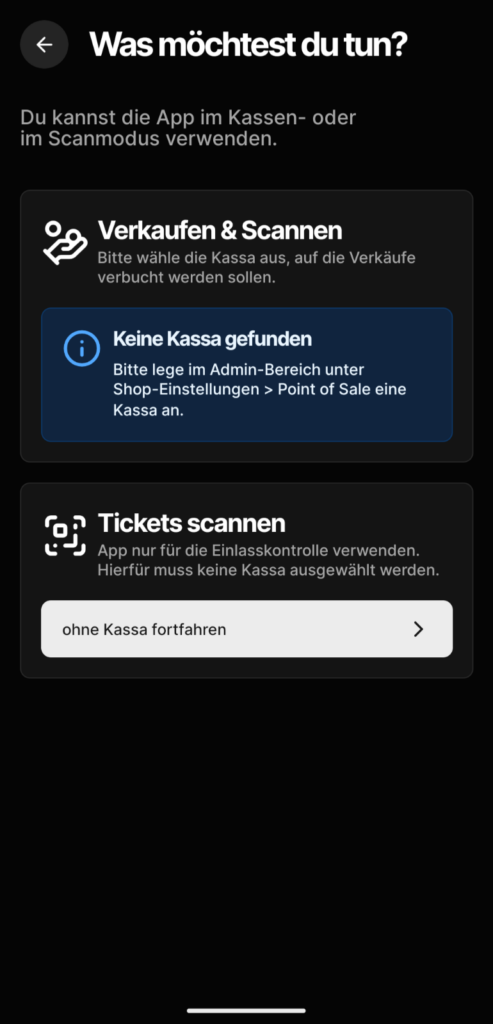
Important: don’t forget to add a register: If you haven’t used the point of sale yet, you still need to add a register. See “Point of sale: add a register”
Our service hotline is for shop operators only.
Mon–Fri, 9:00 a.m. to 4:00 p.m.
+43 732 79 42 88 90
Ticket orders and customer service are not handled via this number. Please contact the organizer directly.
As part of verification, Stripe may request additional documents from you. This is a normal part of the verification process and serves to verify the details stored with Stripe.
Depending on which details need to be verified, Stripe may request different documents:
Proof of organization
Proof of identity
Proof of private address
Which document you need to upload depends on Stripe’s specific verification request. Please upload only the document requested by Stripe and make sure it is complete and clearly legible.
You can find a complete overview of the documents accepted by Stripe in Stripe’s documentation.
If you represent an association or non-profit organization, take particular care to enter the details correctly when setting up your Stripe account. Do not select additional roles such as “board”, “owner”, “director” or similar company roles if they don’t apply to your association. Otherwise, Stripe may wrongly classify the association as a conventional company. In that case, the ZVR extract may no longer be accepted as proof of the organization and Stripe may request additional documents.
That’s why we’ve created a dedicated guide to shop setup for associations (in German). Please use it when setting up your shop and especially for the Stripe verification. The manual explains step by step which details associations must provide and which company roles should not be specified in Stripe.
If Stripe needs a document from you, you’ll find the request directly in your Stripe account. To access it, open “Taxes & payment” in the shop settings and sign in to Stripe.