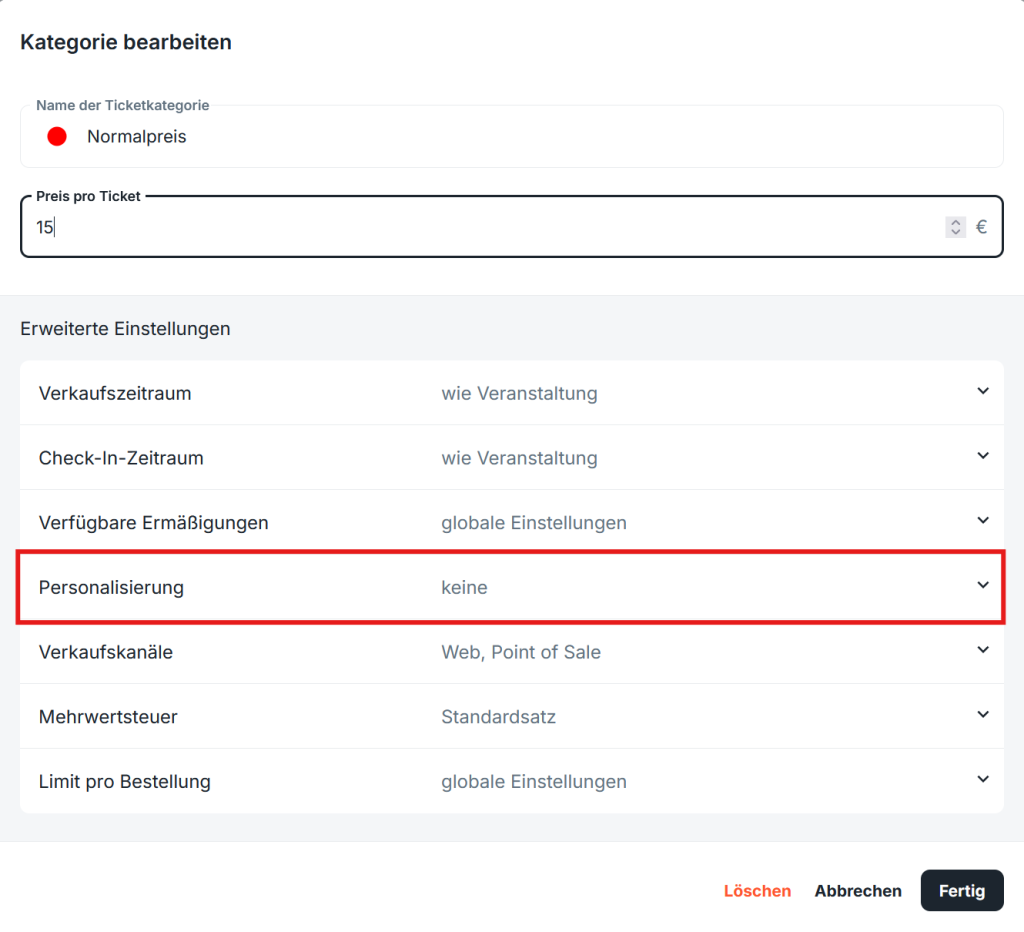
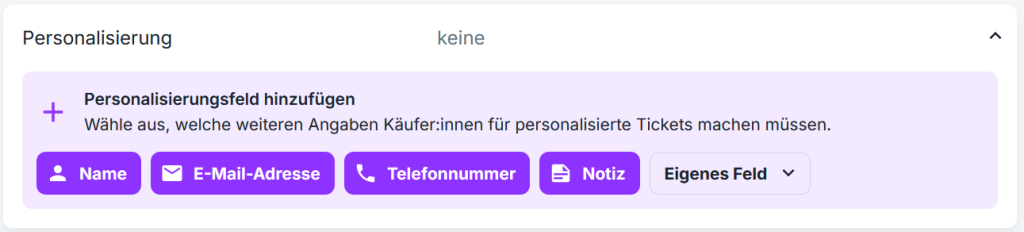
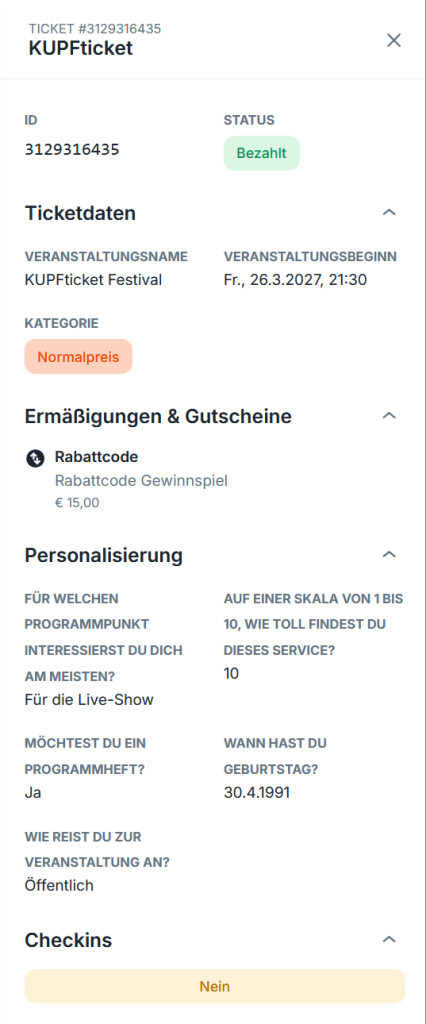
When creating or editing a ticket category, you can enable various fields for ticket personalization:
By default, buyers always have to provide an email address and a name for the order. Ticket personalization is useful when you want to collect additional information:
Name of the ticket holder
Email address of the ticket holder
Phone number
Notes field (optional)
Custom field
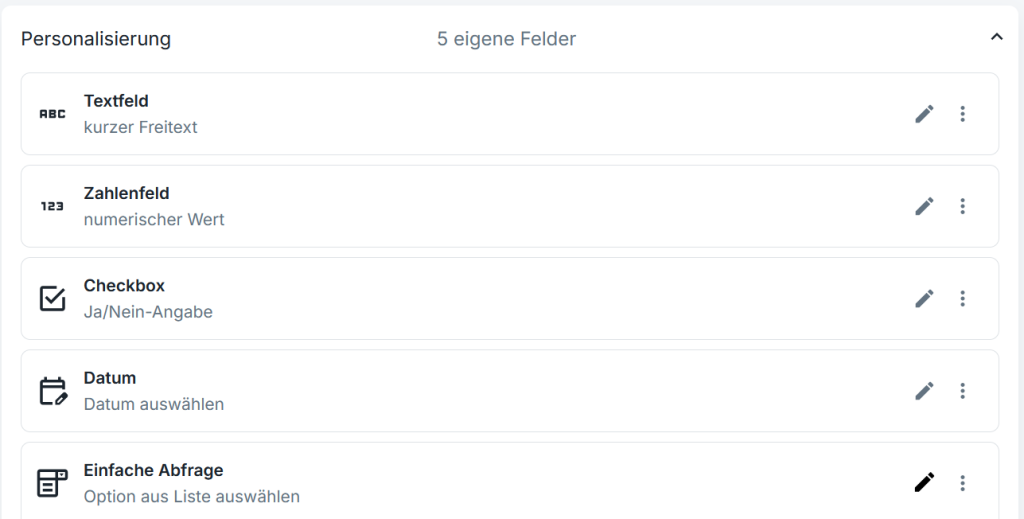
Custom field
You can define custom fields individually
Text fields
Number fields
Date picker
Checkboxes
Simple questions
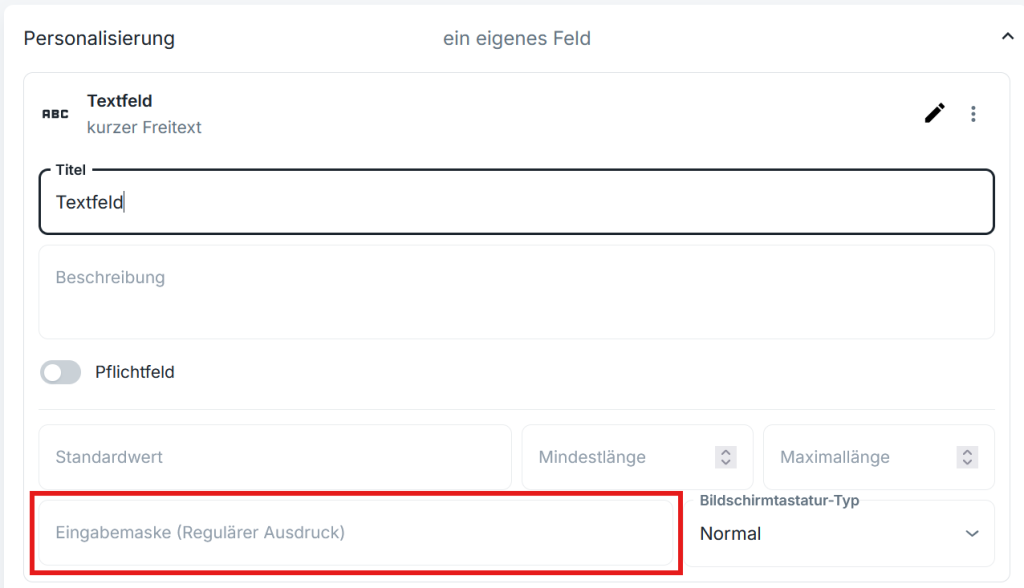
Every new field can be defined as required or optional
Input mask
In the input mask, you can define a so-called pattern. You can find the details here.
For example:
[a-z] if only lowercase letters should be valid
[a-z] {4-8} if four to eight characters (lowercase letters) should be requested
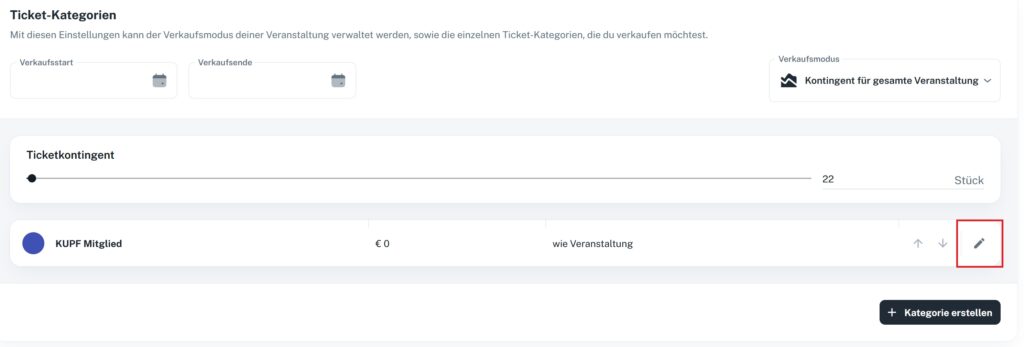
In the event editor, you can create ticket categories and edit them at any time. Among other things, you can set the sales period and the check-in period, select available discounts, and enable or disable the sales channels web and POS.
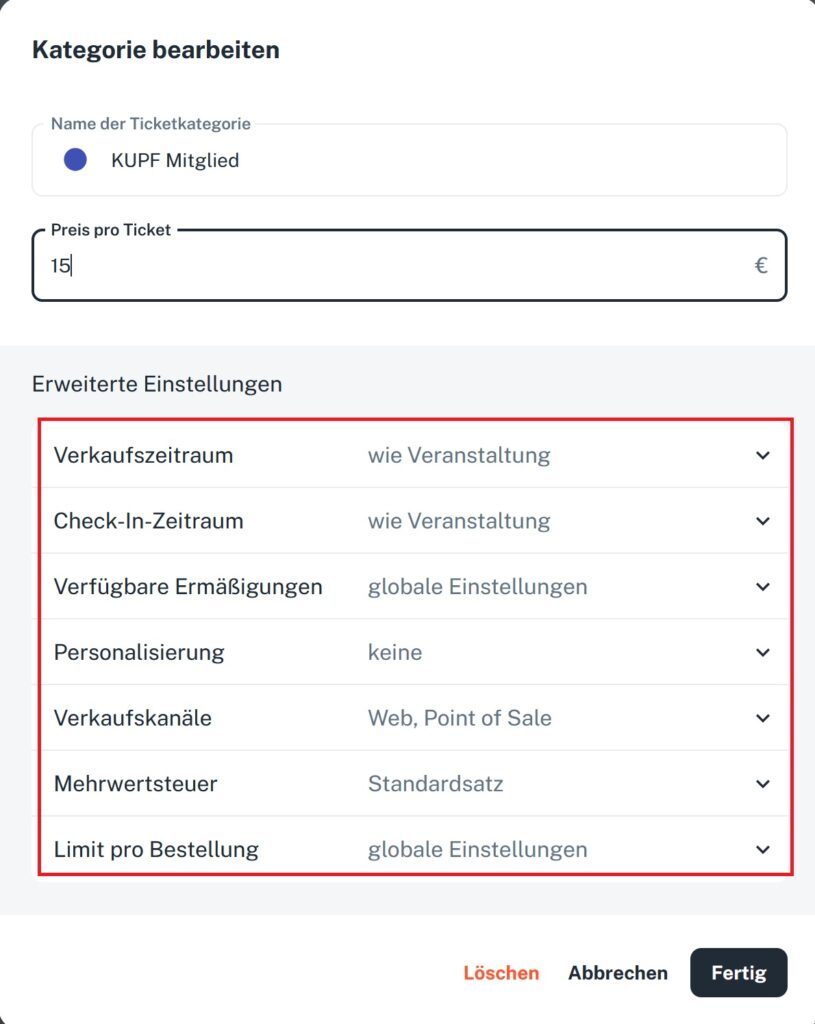
To enter edit mode, click the pencil icon directly on the ticket category (see screenshot). In the category’s advanced settings, you’ll find useful tools to fine-tune the sales of your event:
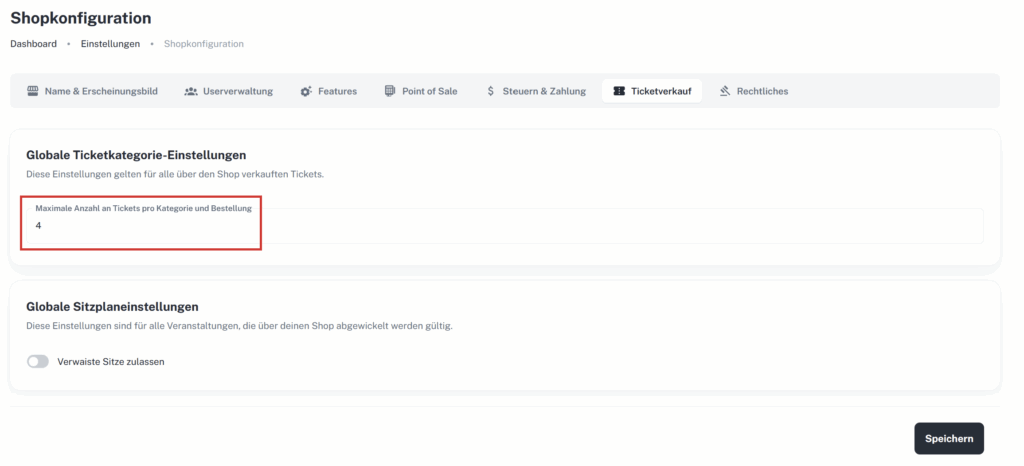
Under “Shop configuration” -> “Ticket sales”, you can set a maximum number of tickets per order for your shop:
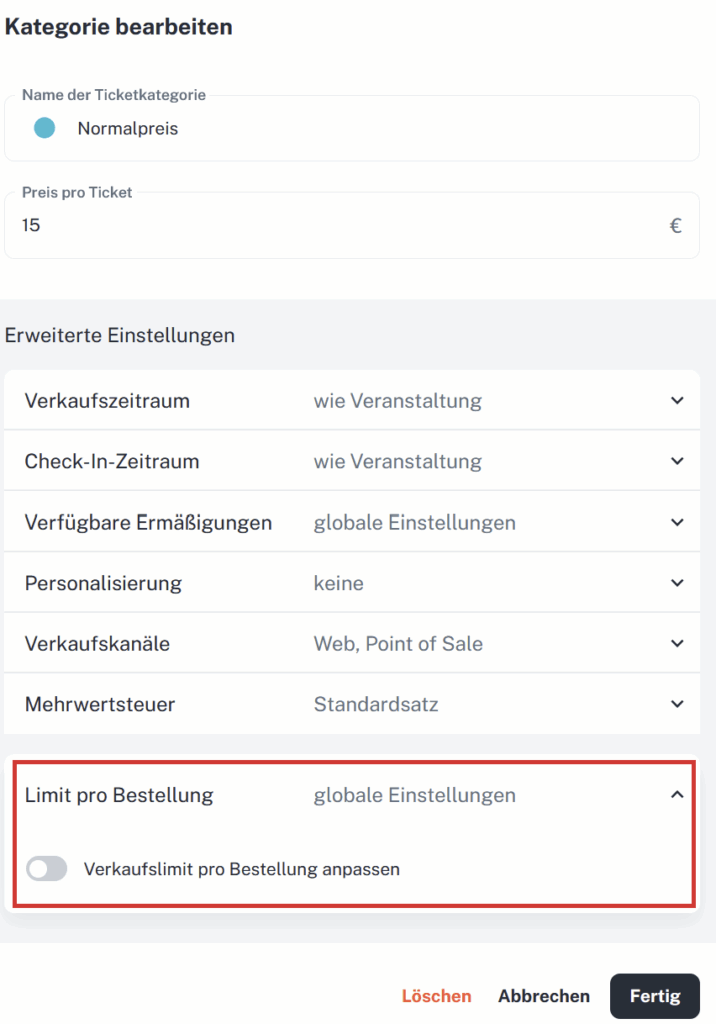
You can also adjust the limit in the advanced settings of a ticket category. This setting applies only to that category and overrides the global shop limit.
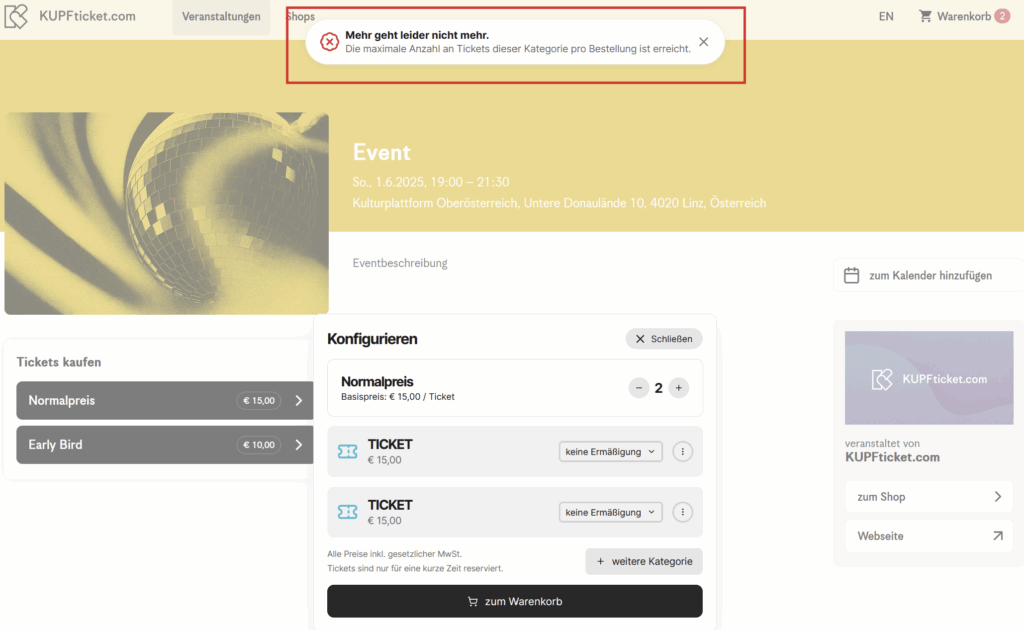
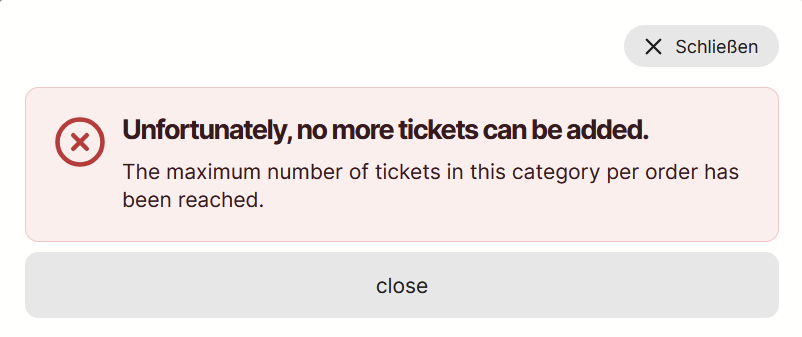
When buyers reach the limit in the shopping cart, an info popup appears:
KUPFticket currently offers several ways to issue complimentary tickets. Which option is suitable depends on where the free tickets are to be issued, whether specific seats are assigned, and how the tickets are to be evaluated later on.
Overview
Option
Suitable for
Issued via
Evaluation
“Confirm without payment”
general admission and reserved-seat tickets
Point of sale
Filter by payment method
€0 ticket category
your own free ticket categories, e.g. general admission tickets
Point of sale
Filter by ticket category
100% discount code
free tickets via the web shop
Web shop and point of sale
Web shop: “Free”; point of sale: filter by discount
POS category with 100% discount
reserved-seat tickets via the seating chart
Point of sale
Filter by €0 tickets
1. “Confirm without payment” in the point of sale
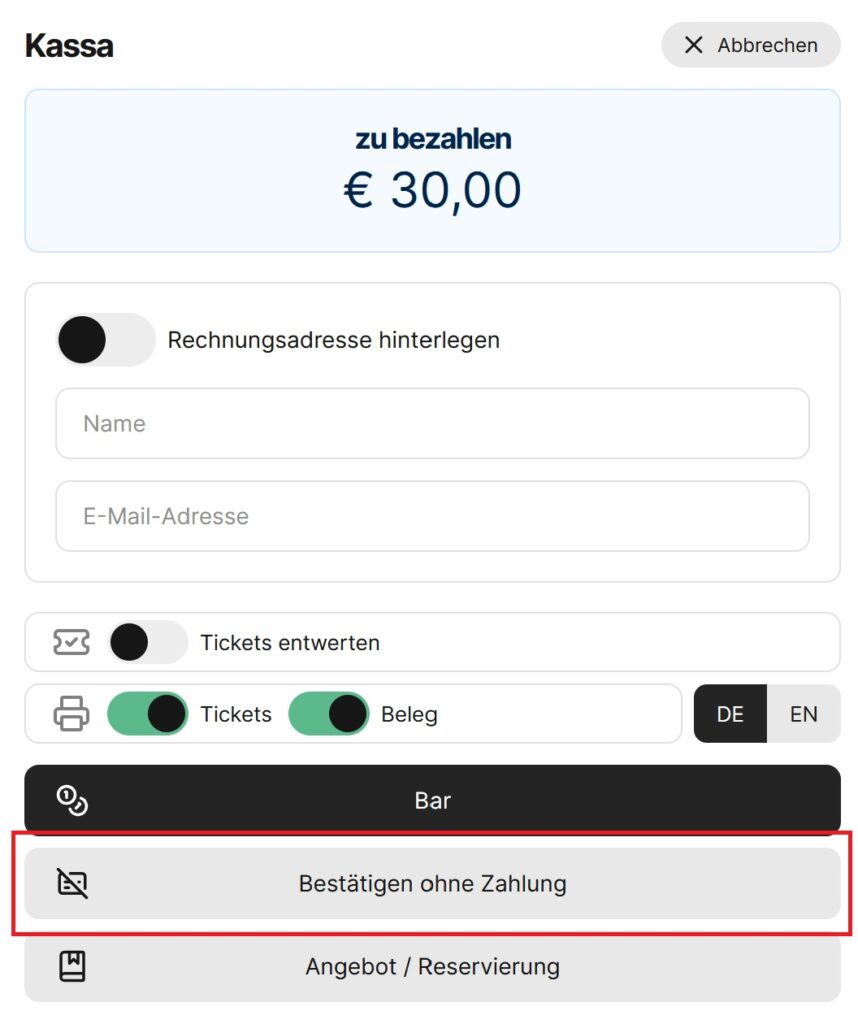
In the point of sale, you can select “Confirm without payment” when selling.
A valid ticket is created, but no payment is recorded. The ticket therefore does not appear as revenue in the settlement. In the ticket list, you can filter by the payment method “Confirm without payment”.
This option is suitable, for example, for general admission and reserved-seat tickets when a ticket is to be issued free of charge and no separate free-ticket statistics are needed in the settlement.
2. Your own €0 ticket category for the point of sale
Another option is to create your own €0 ticket category. This category can be set up so that it is only available via the point of sale and not offered in the web shop.
To do so, go to the ticket category under “Edit category” → “Advanced settings” and disable the option “Sell via web”.
When selling via the point of sale, you can then select this €0 ticket category.
The tickets are created with a price of €0. In the settlement and statistics, however, they are currently not shown as a separate “free ticket” category. In the ticket list, the tickets can be filtered by the respective ticket category.
This option is suitable, for example, for general admission tickets where the main purpose is to record the number of tickets issued.
3. Discount code with 100% discount
Alternatively, you can create a discount code with a 100% discount.
When this discount code is used during a sale in the point of sale or in the web shop, the ticket price is reduced in full and the ticket is issued free of charge.
This option is particularly suitable for free tickets that are to be issued via the web shop. Tickets issued this way are shown as “Free” in the evaluation.
Tickets booked in the point of sale can be filtered in the ticket list via the “Discount” column.
4. Your own POS category with a fixed 100% discount
If free tickets are to be assigned to specific seats in the seating chart, you can create a separate POS category with a fixed discount of 100%.
When selling, first select the desired seat directly in the seating chart. Then select the corresponding POS category with the stored 100% discount. The regular ticket price is automatically reduced to €0.
The tickets issued can then be filtered as €0 tickets in the ticket list.
In the settlement and statistics, however, these tickets are currently not shown as a separate “free ticket” category.
This option is particularly suitable for free tickets with fixed seats, where seats are to be assigned via the seating chart.
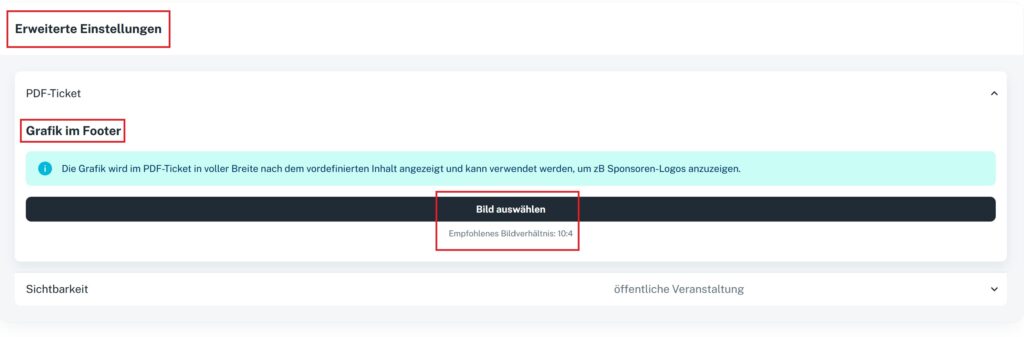
The ticket layout is standardized. Your shop and event images give the ticket an individual touch. In the event editor, you can also upload a second image that designs the lower part of the ticket.
This is also where you can add further information, e.g. if the ticket is valid as a public transport ticket. Or if you need a logo bar on the ticket, you can add it at any time with this option.
Under “Edit event”, you’ll find the following option at the very bottom:
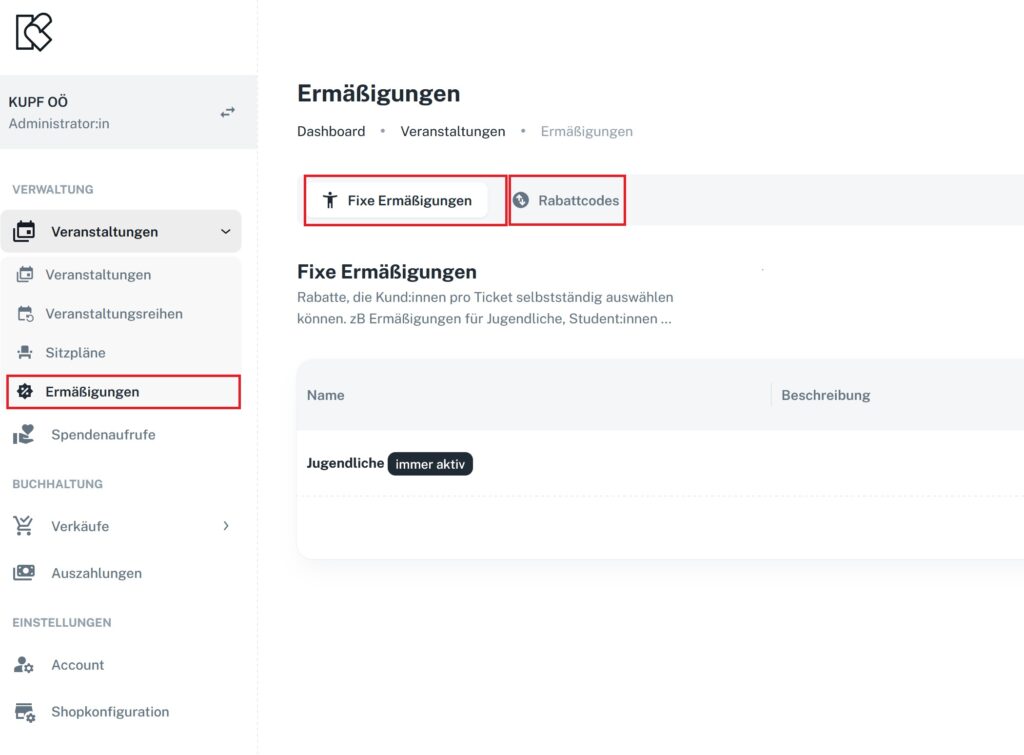
In the main menu under “Events” – “Discounts”, you can set up fixed discounts and create promo codes.
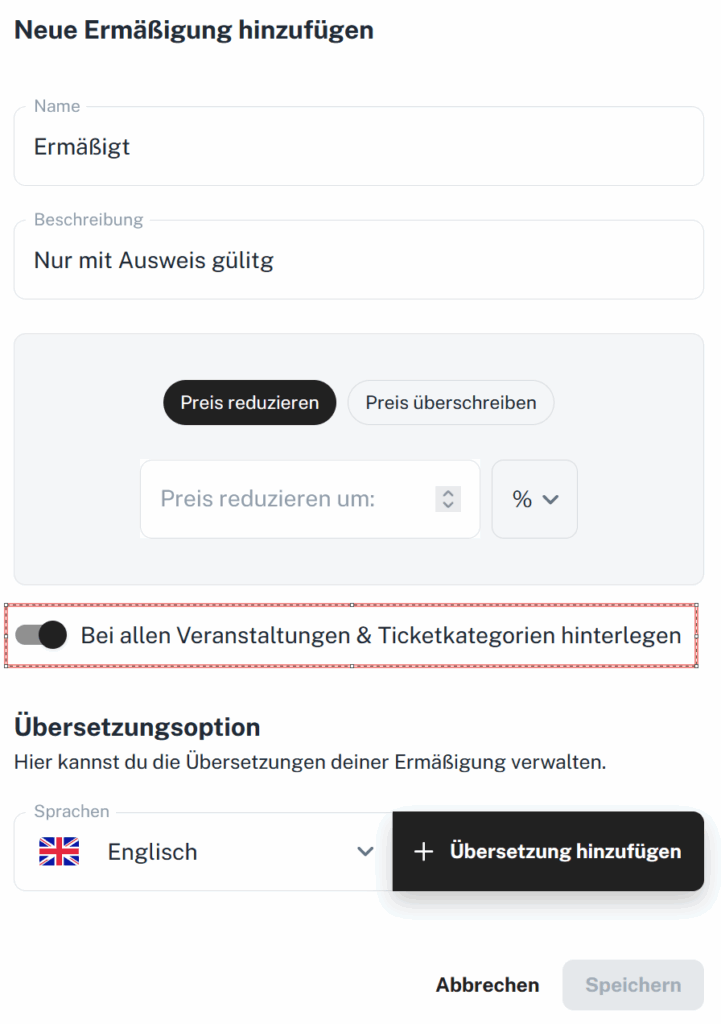
Global discounts are available for all events and categories. You can create a global discount with the toggle “Apply to all events & ticket categories”. If you turn the toggle off, you can include the discount for selected categories in the advanced settings.
Conditions
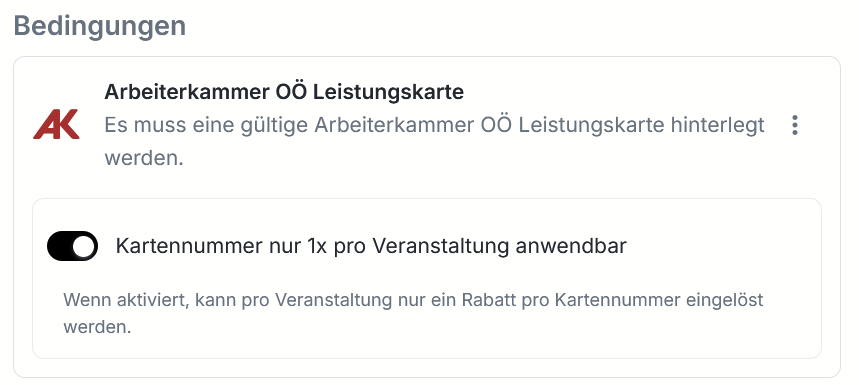
Upper Austrian Chamber of Labor (AK OÖ) benefits card
With fixed discounts, you can now also integrate the benefits card (Leistungskarte) of the Upper Austrian Chamber of Labor.
When buying a ticket, the card number is validated live and the discount is applied automatically.
Please note: this feature is currently only available to benefits card holders from Upper Austria.
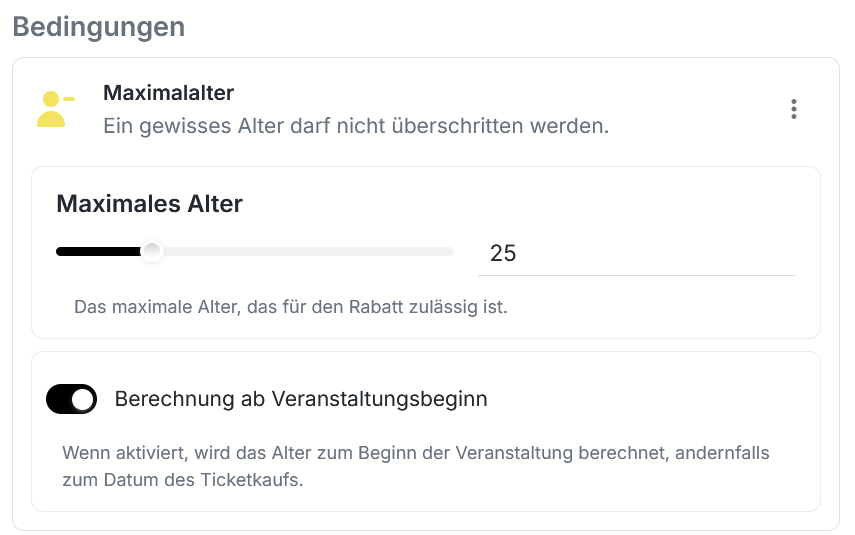
Age verification
When buying a ticket, the buyer’s age is requested and the discount is applied automatically.
You can define any maximum age. When purchasing, buyers confirm their date of birth.
This is particularly handy for youth discounts.
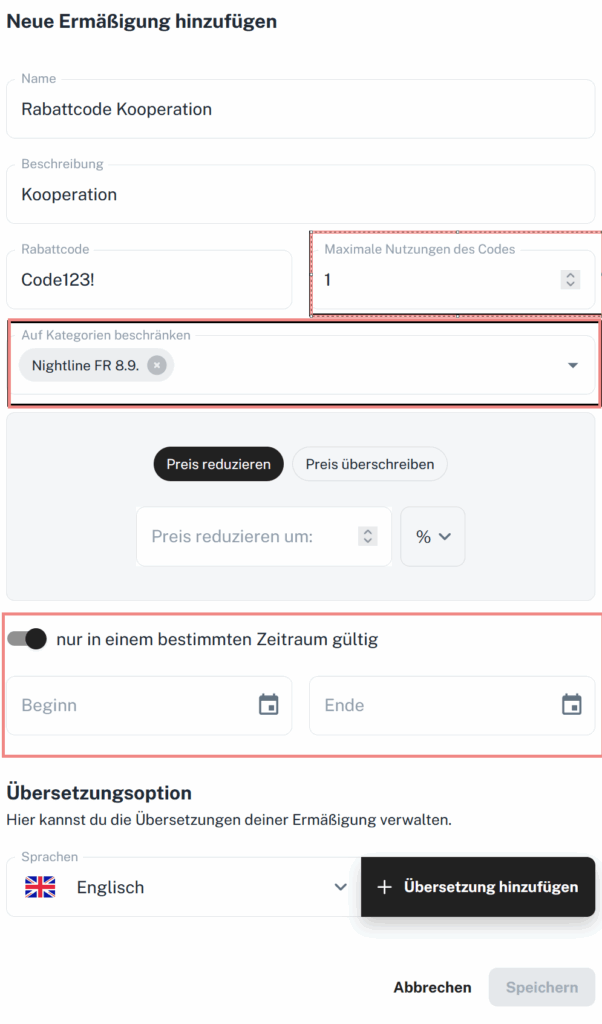
Create promo codes
With promo codes, you can define the validity period and the number of times the code can be used. You can also restrict promo codes to individual categories.